Navigating the UI
The OpsIQ interface is a single screen made of three parts, side by side:
- the navigation rail on the left (New session, Sessions, Dashboard, System Messages, and — for authorized users — Audit Log, with your account at the bottom),
- the content panel in the middle (whichever section you have open), and
- the Chat Assistant on the right.
There is no separate menu bar; everything is reached from the navigation rail. This page points out the handful of controls that make the interface comfortable to work in.
Collapse the navigation rail
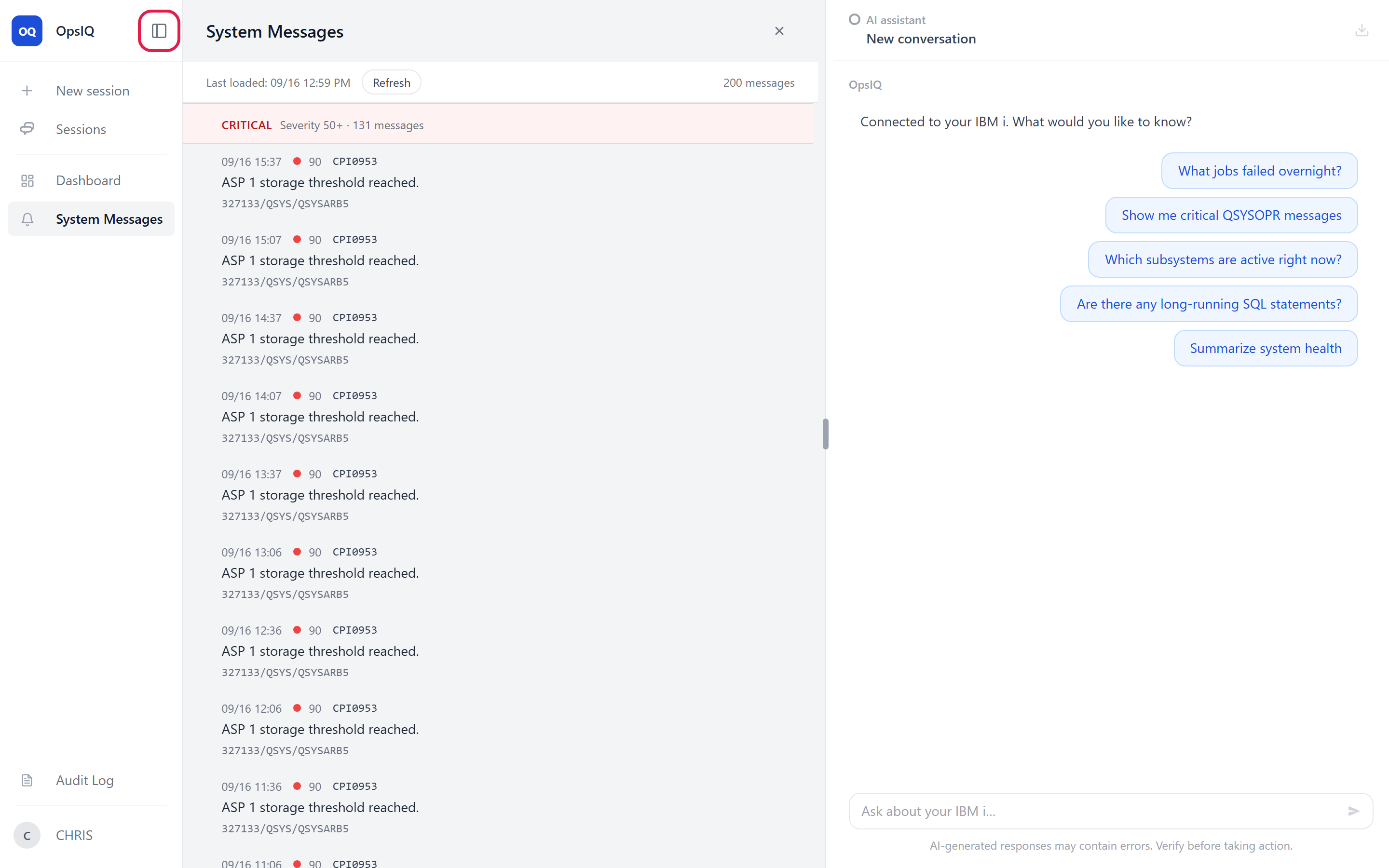
When the browser window is 900 pixels wide or narrower, the rail shows icons only and cannot be expanded; the collapse button is hidden until the window is wider again. On wider windows you can collapse it by hand with the Collapse sidebar button at the top of the rail, beside the OpsIQ logo — mainly useful when you want to maximize your working space. Once the rail is collapsed, the button takes the logo's place; select it (Expand sidebar) to expand the rail again. OpsIQ remembers your choice.
When the rail is collapsed, hover over an icon to see its label as a tooltip.
Show or hide the content panel
Selecting a section (for example, System Messages) opens it in the middle panel. To close it, select the × at the right of the panel's header:

The panel closes and the Chat Assistant takes the full width of the window.
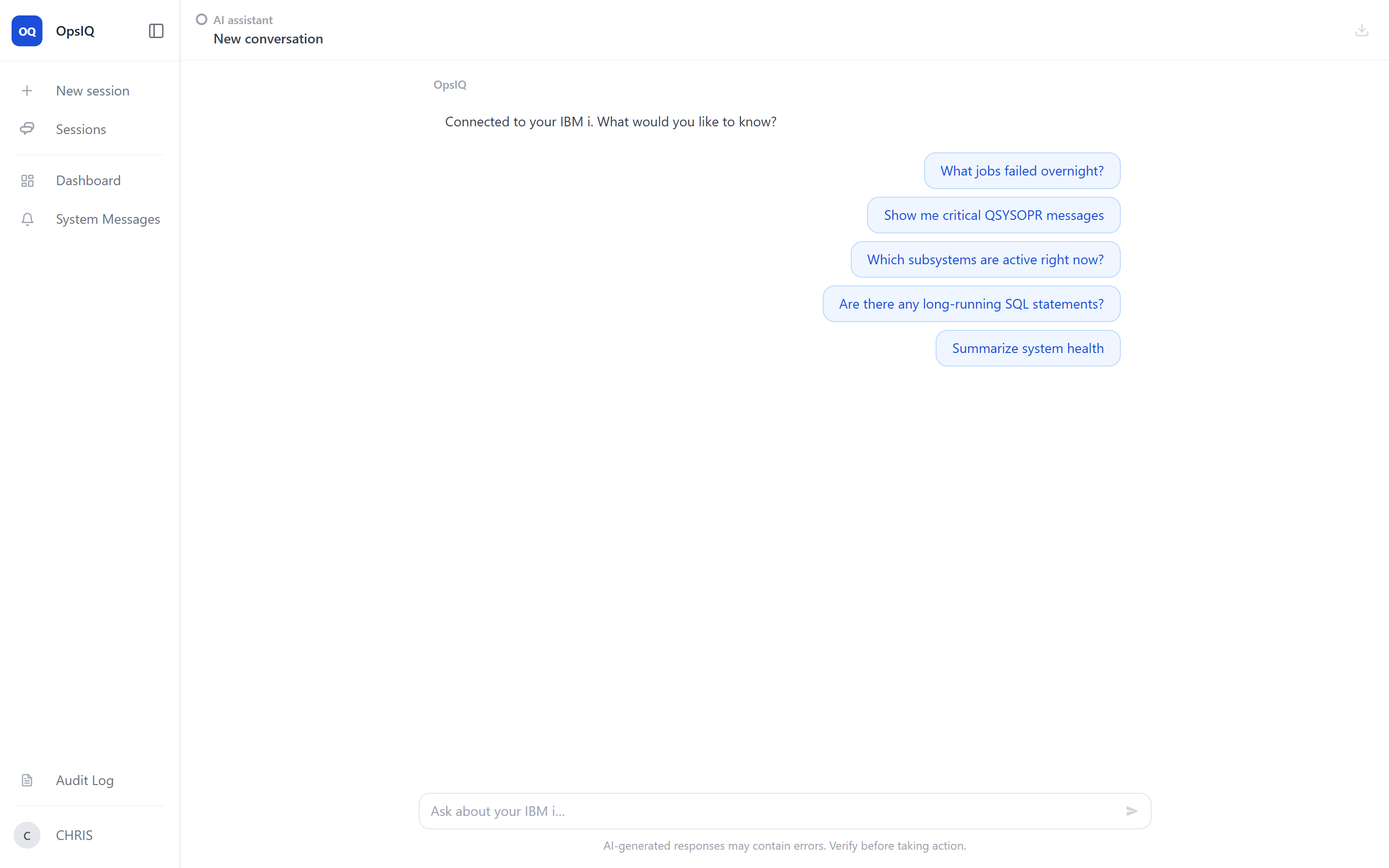
Select any section in the navigation rail to re-open the panel on that feature. Selecting the section you are already on, while the panel is open, closes it again, the same as clicking the ×.
OpsIQ remembers whether you left the panel open or closed, and opens it that way next time you use OpsIQ in that browser.
Resize the Chat Assistant
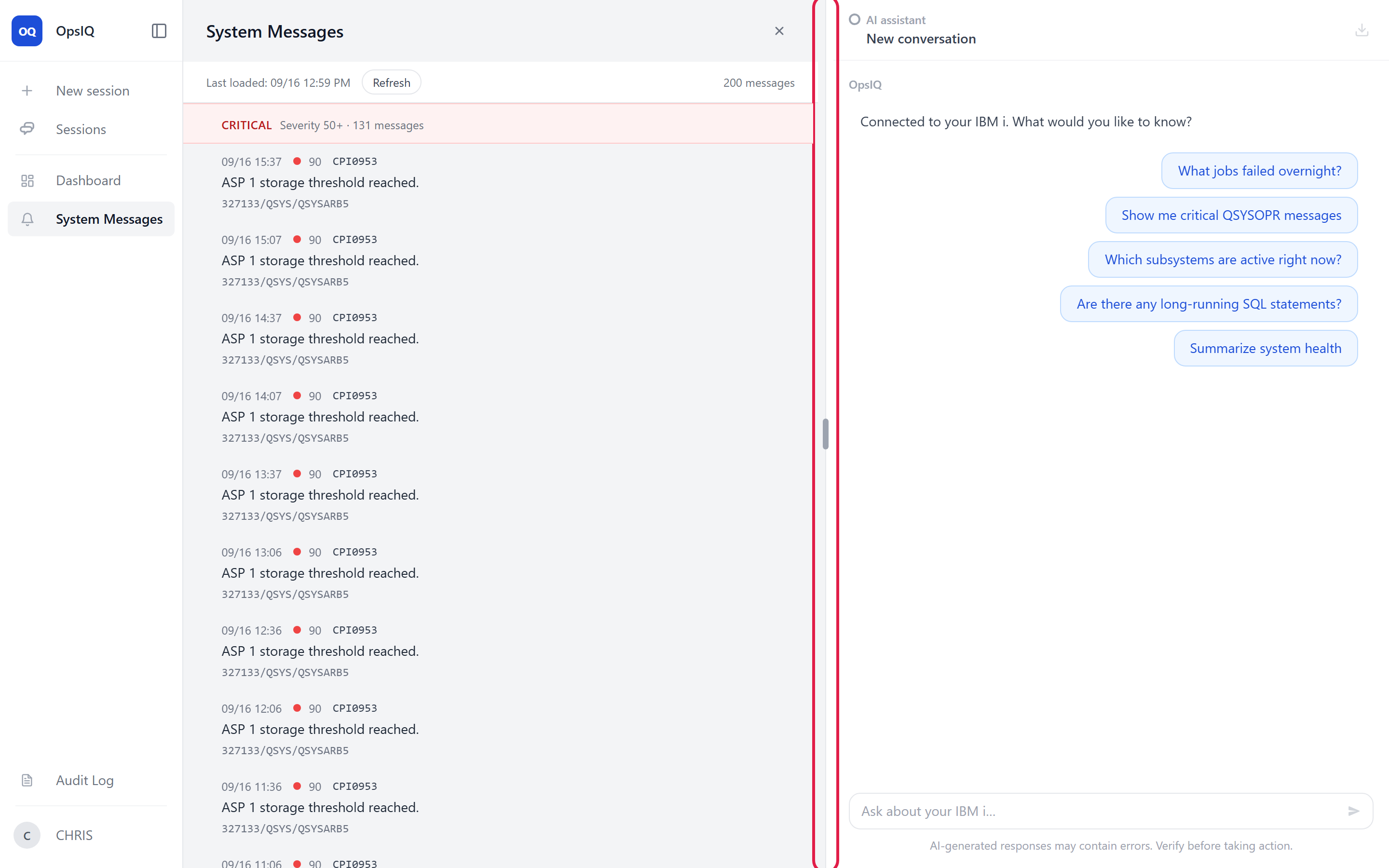
Drag the divider between the content panel and the Chat Assistant to make the chat wider or narrower. OpsIQ remembers the width you choose. The divider is there only while the content panel is open; with the panel closed, the Chat Assistant already takes the full width.
You can also resize it from the keyboard. Clicking the divider does not select it — you reach it by tabbing. The easiest way is to put focus in the Chat Assistant and press Shift+Tab to step back onto the divider (tabbing forward from the left can walk you through the middle panel first). Once the divider has focus, use the left and right arrow keys to resize.
Your account: theme and sign out
Select your name at the bottom of the navigation rail to open the account menu. From here you can switch between Light Mode and Dark Mode, and Sign out.
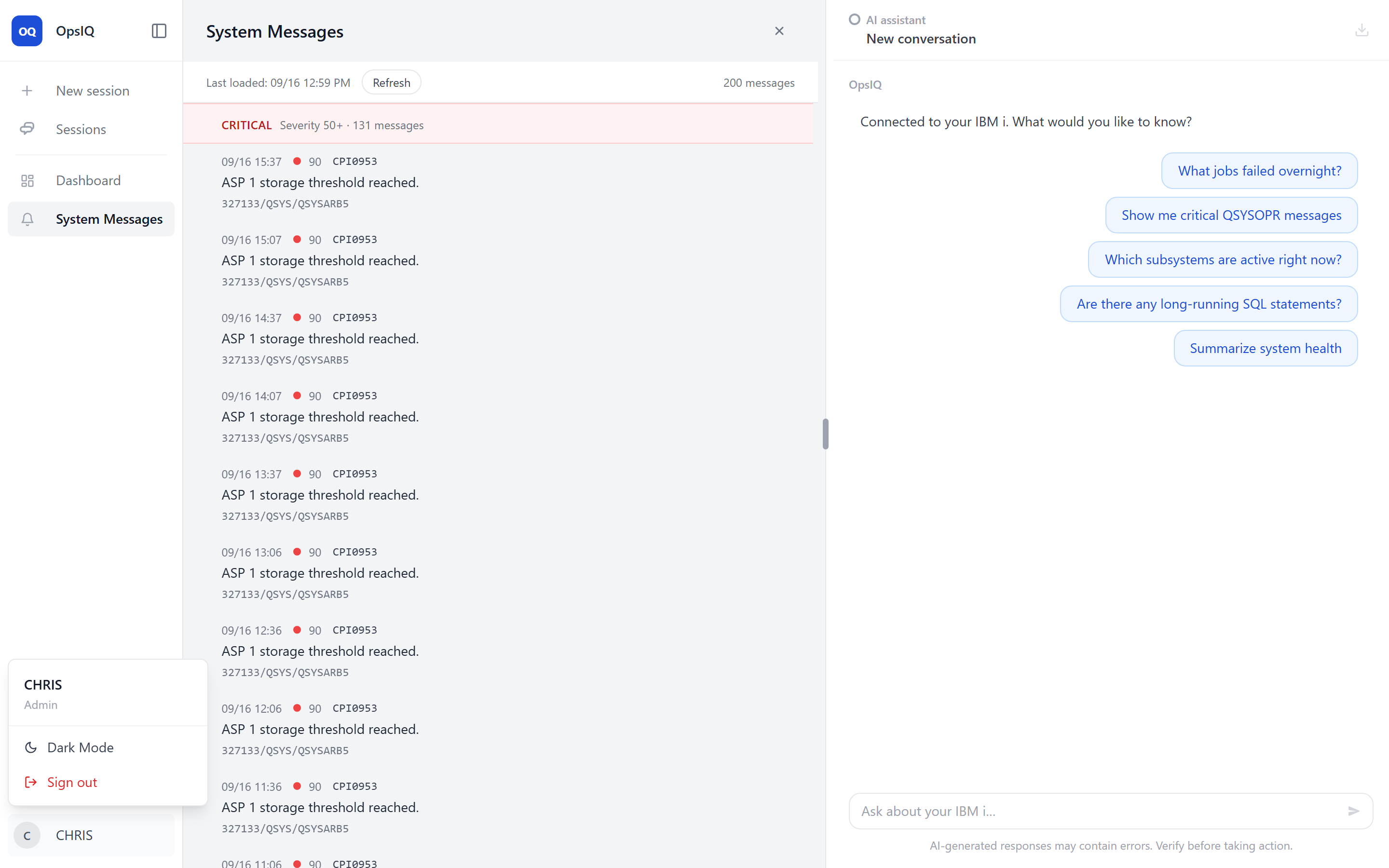
Signing out ends your session on the server as well as in the browser, so the old sign-in cannot be reused. Any other OpsIQ tabs open in the same browser are signed out the next time they contact the server.
If OpsIQ is still answering in any conversation when you select Sign out, it asks Leave while a response is streaming? first, because leaving stops those responses. Choose Stay to keep working, or Leave anyway to stop them and sign out. Closing or reloading the browser tab while a response is arriving likewise brings up your browser's own leave-page prompt.
Chat basics
In the Chat Assistant, press Enter to send your message and Shift+Enter to add a new line. While OpsIQ is answering, the send button becomes a Stop button so you can end a long response early.