Chat Assistant
The Chat Assistant is OpsIQ's headline feature: ask about your IBM i in plain language and get answers grounded in live system data. It is always on screen — a panel in the OpsIQ shell that stays alongside whatever else you have open, so you can ask a question without navigating away from what you are doing.
Getting started
When you open OpsIQ the assistant greets you with a fresh conversation and a few suggested questions. Select one to send it, or type your own — press Enter to send and Shift+Enter to add a new line. Start a fresh conversation at any time with New session in the navigation rail. (For resizing the panel and other shell controls, see Navigating the UI.)
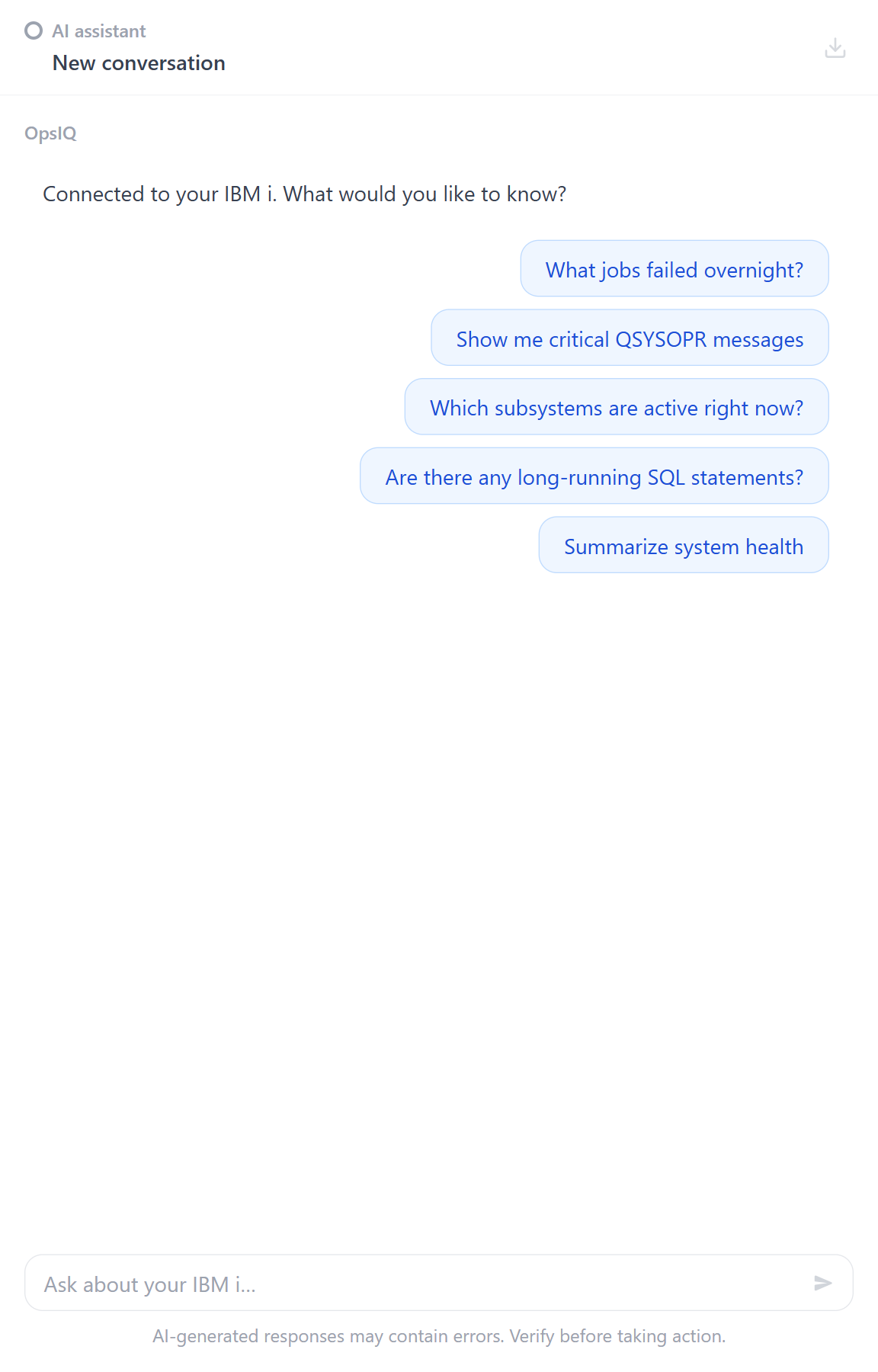
Ask the way you would ask a colleague:
- "Which subsystems are active right now?"
- "What jobs failed overnight?"
- "Are there any long-running SQL statements?"
- "Summarize system health."
Answers stream in as they are generated. While OpsIQ is answering, the message box is unavailable and the send button becomes a Stop button so you can end a long response early. Completed answers are formatted with headings, tables, and lists where they help, and OpsIQ offers a few follow-up questions you can select to dig deeper.
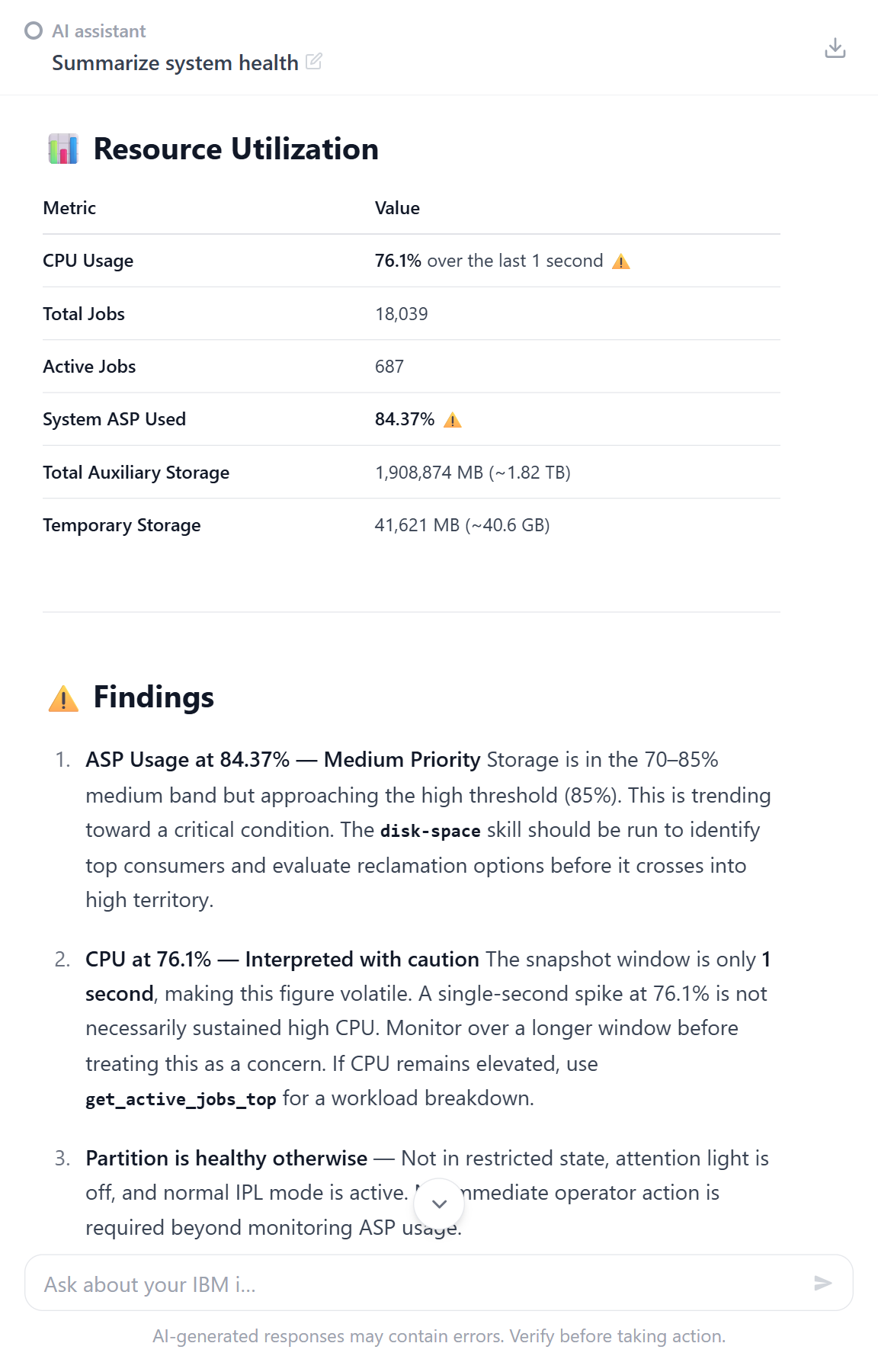
The follow-up questions appear as selectable chips beneath the completed answer:
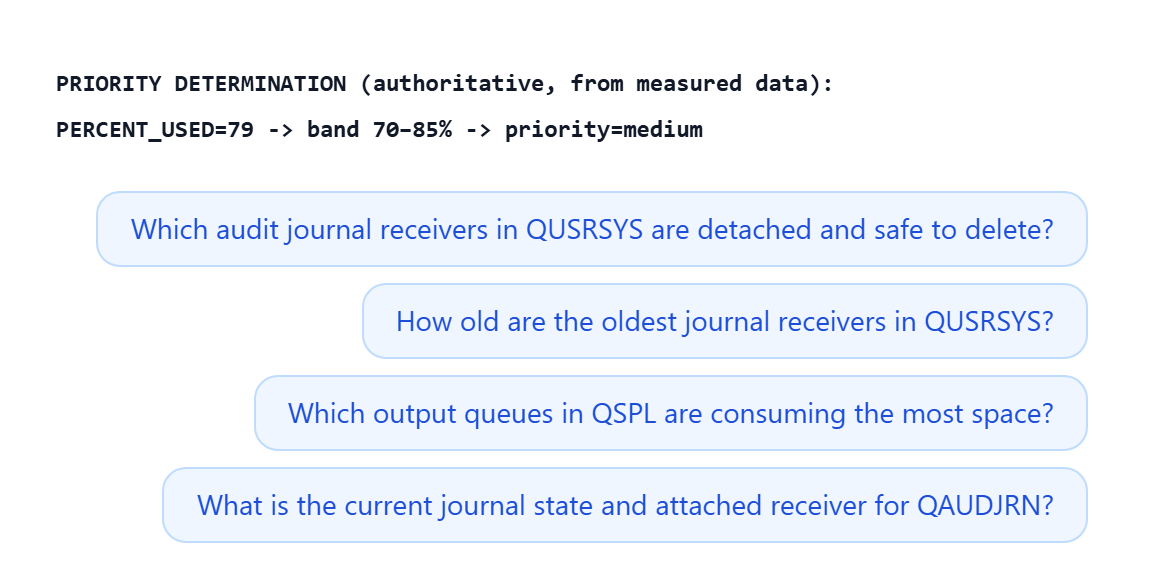
Hover over a completed answer (or tab to it) to reveal a Copy to clipboard button at its bottom-right corner, which copies that answer with its formatting.
If OpsIQ cannot produce an answer — for example, the AI service is unavailable or the request times out — the reply appears as an amber error message with a Retry button that sends the question again.
Moving around a long conversation
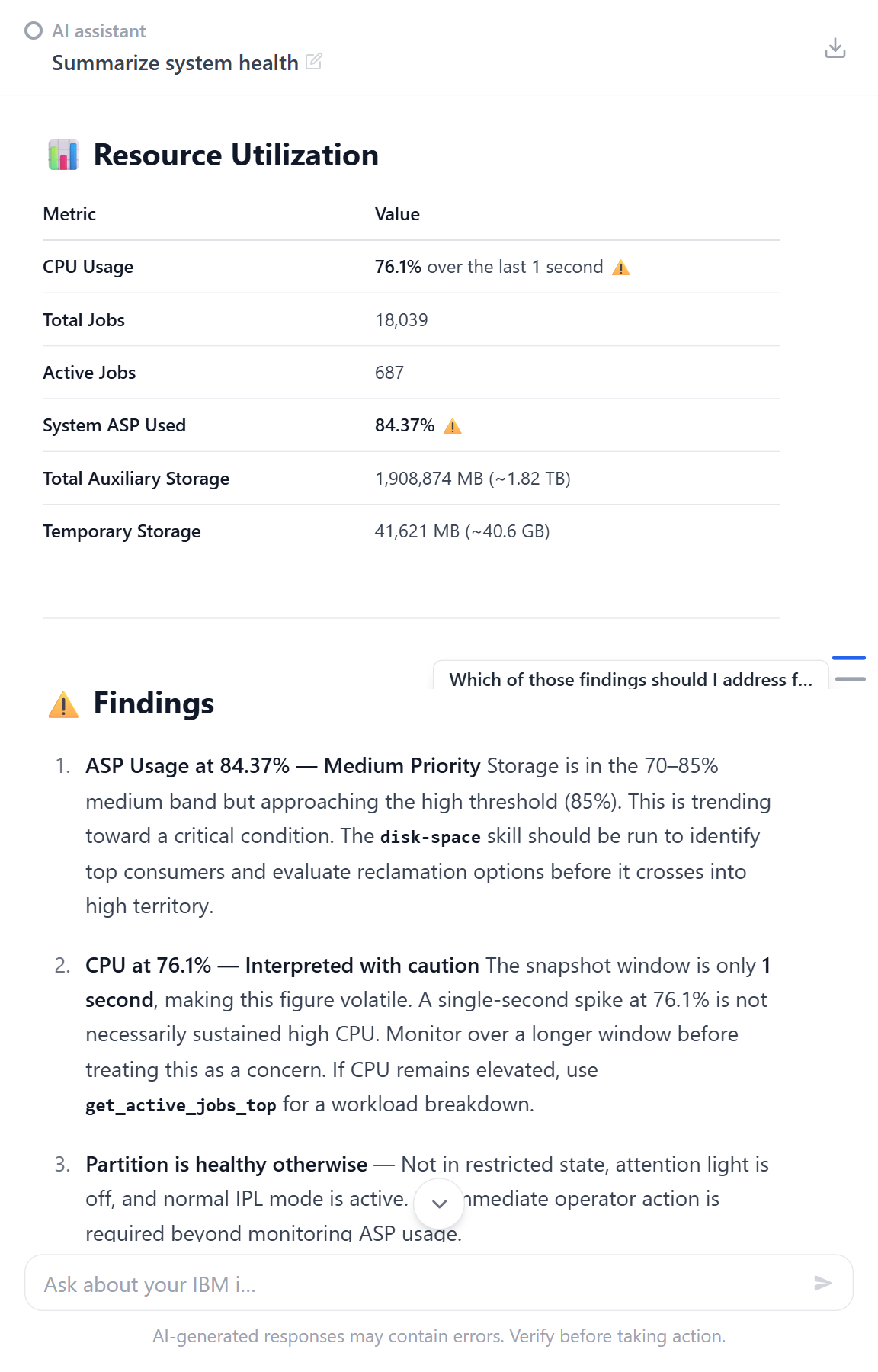
As a conversation grows, two controls help you move through it:
- Jump to the latest. When you scroll up to re-read something earlier, a small round ↓ button appears near the bottom of the panel; select it to return to the newest message.
- Jump between your questions. Once you have asked more than one question in the same conversation, a slim rail of ticks appears along the right edge of the panel — one tick for each question you asked. Hover a tick to see that question, and select it to jump straight to that point in the conversation.
What it can and cannot see
OpsIQ answers from live, read-only data gathered from your IBM i at the moment you ask:
- It can see current operational data — system status, subsystems and jobs, the QSYSOPR message queue, job logs, storage and ASP usage, the history log, and similar system information.
- It cannot see your application data. OpsIQ works only with the operational and system information its read-only tools expose. It is not a window into your business database tables, file contents, or program source — unless a tool is specifically built to surface something, it is not available to the assistant.
- It only reads — it never changes anything. Every tool OpsIQ uses is read-only. It cannot start or end jobs, change configuration, hold objects, or alter data. It looks and explains; acting is left to you.
- Answers reflect the moment you ask. They are a snapshot of the system state when you sent the message, not a continuously updating view — ask again to refresh.
- For general questions it answers from knowledge. Conceptual questions ("what does a
CPFmessage prefix mean?") are answered from general IBM i knowledge without querying your system.
Verify before acting
As the note under the chat input says, AI-generated responses may contain errors. Treat OpsIQ's answers as a well-informed starting point and confirm anything important before you act on it.
How OpsIQ uses your system data
To answer a question about your system, OpsIQ runs one or more tools — small, read-only queries against your IBM i. When it does, the answer includes a compact activity line showing how many tools ran — and sometimes more than one line, as OpsIQ gathers evidence in several passes and narrates its reasoning between them. Each line stays collapsed by default:
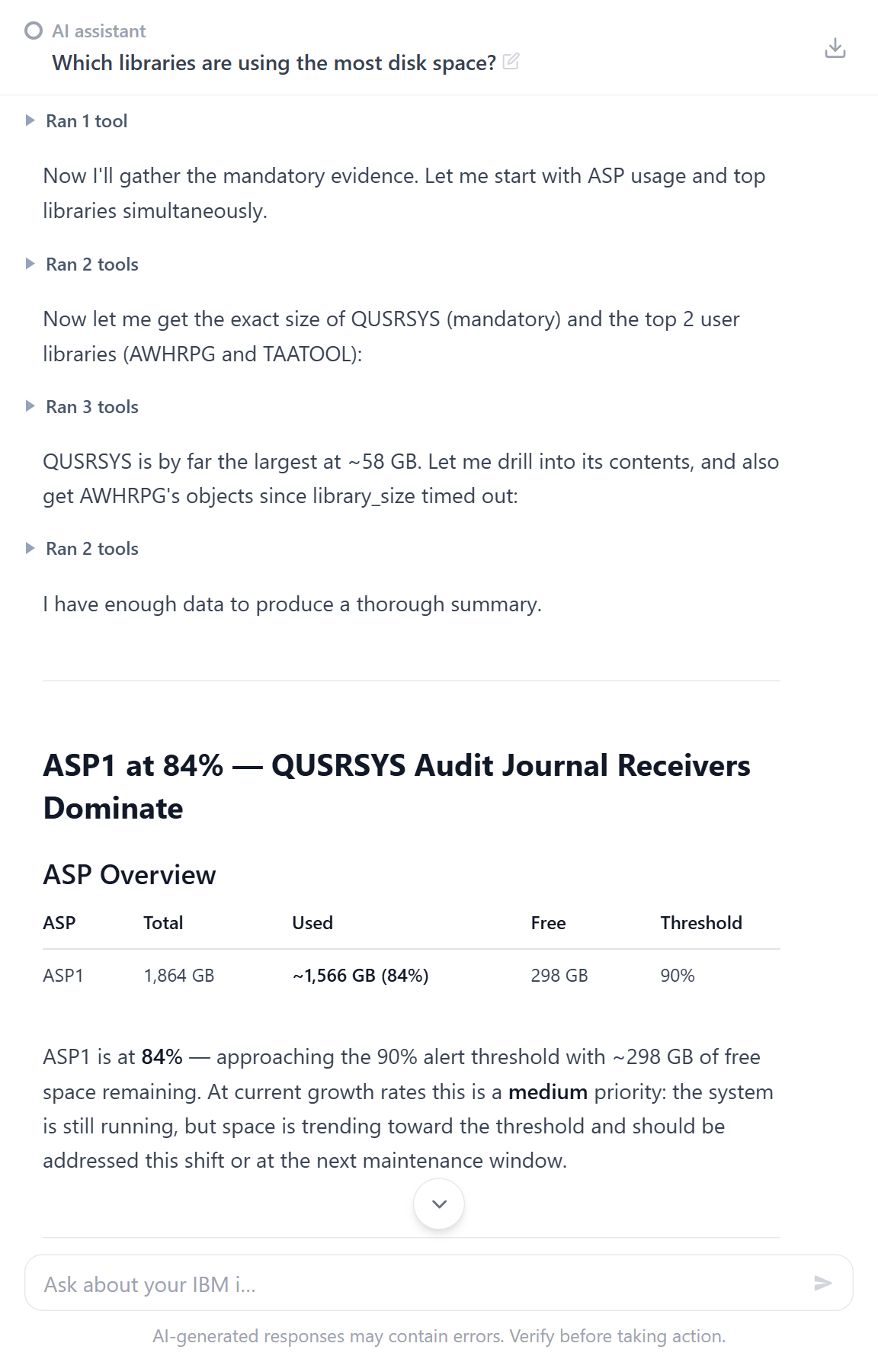
While the tools are still working the line reads Running N tool(s)…. Once they finish it reads Ran N tool(s), and notes any that were stopped — for example Ran 3 tools · 1 stopped. A tool is stopped when the response ends — for instance because you selected Stop — before the tool returns.
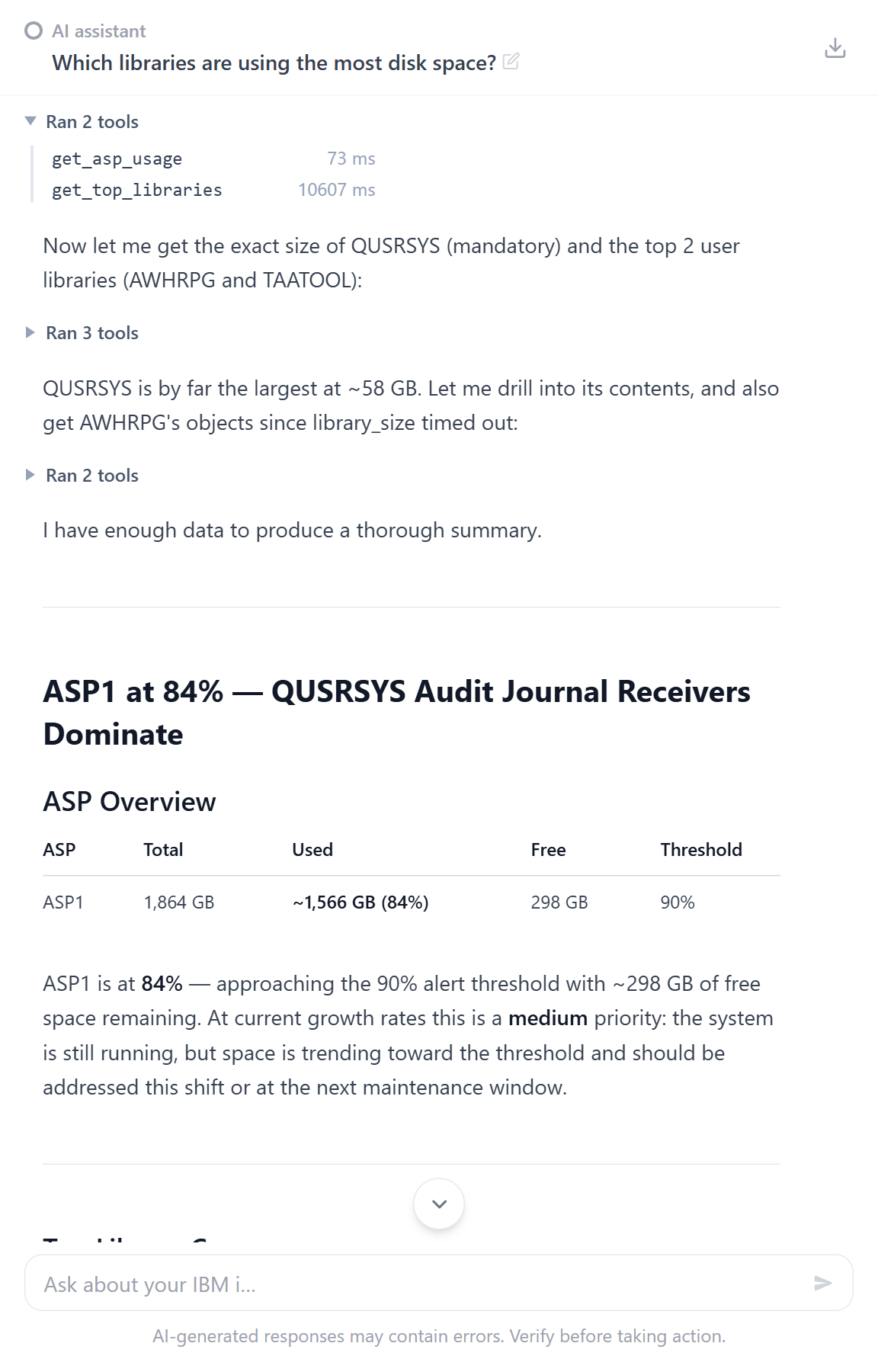
Select Ran N tool(s) to expand it and see exactly which tools OpsIQ used — so you can see the evidence behind an answer rather than taking it on trust. A tool that was stopped is marked with ✕:
Showing the SQL behind a tool
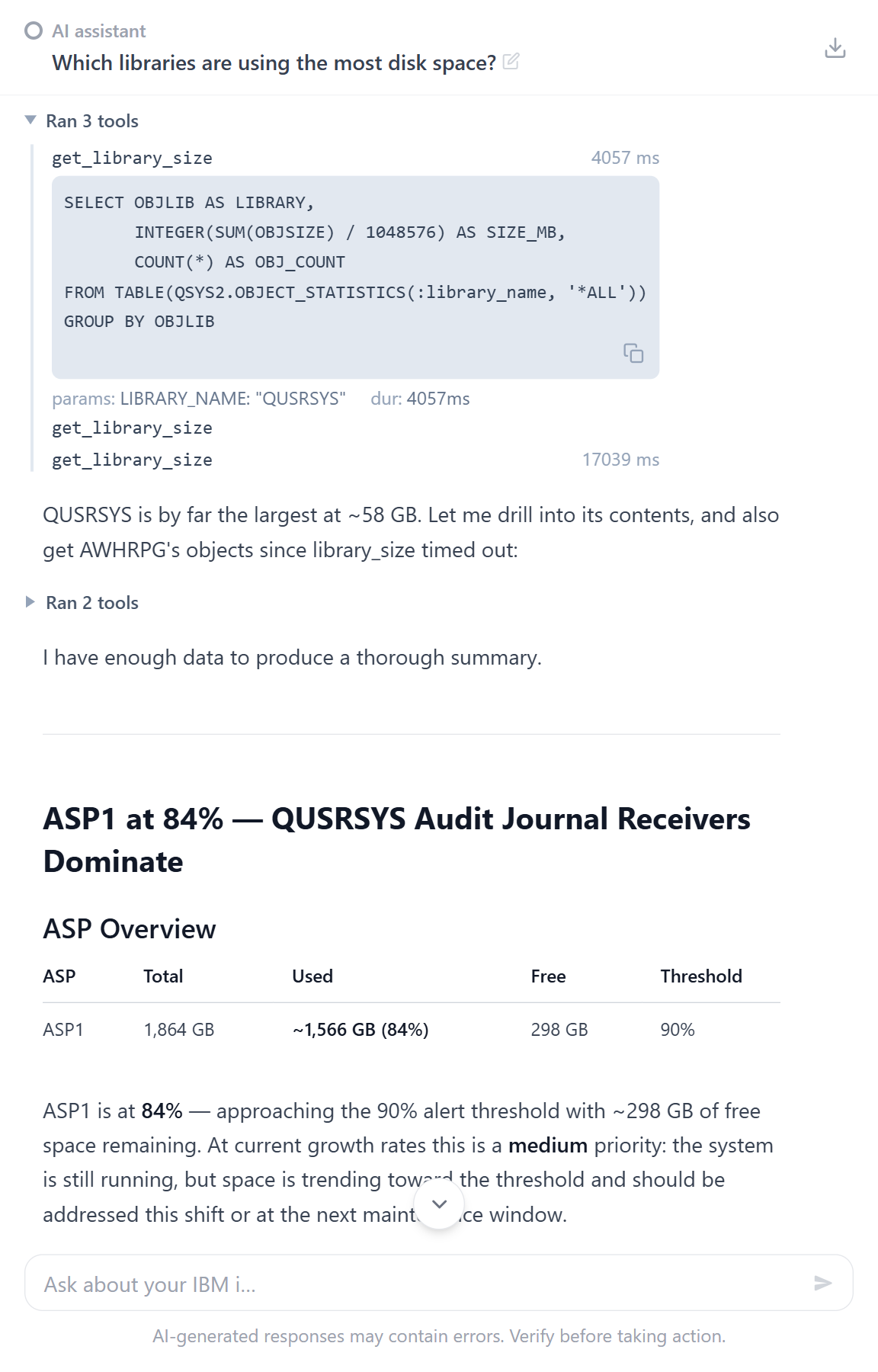
For tools that query the database, OpsIQ can also surface the exact SQL statement it ran, along with its parameters and duration. Each database tool row shows how long the call took. Hover the row and select SQL to see the statement. The copy SQL button in the corner of the SQL block copies it:
SQL surfacing is optional and off by default
Showing the underlying SQL is a configuration option, disabled by default. An administrator turns it on for the server (EXPOSE_SQL_METADATA). With it off, the tool activity still shows which tools ran, but not the SQL, its parameters, or how long each call took. See Configuration Options.
Exporting a conversation
The download icon at the right of the chat header saves the whole conversation as a JSON transcript, including the tools that ran and the SQL behind each one:

It is greyed out until there is something to export, and while a reply is still arriving. See Export a transcript for what the file contains.
Where conversations go next
- Every conversation is saved as a Session you can reopen, rename, or continue later. To rename the conversation you are reading, select the pencil (Rename conversation) beside its title in the chat header, type the new title, and press Enter (or Esc to cancel).
- The same assistant powers investigations launched from System Messages — an investigation is just a chat that OpsIQ starts for you, seeded with a specific message.
- The Ask OpsIQ button on a Dashboard tile starts a new conversation, seeded with a question about the indicator that tile tracks.
- Every exchange, whoever asks it, is recorded in the Audit Log, which users with
*SECADMauthority can review.