System Messages
System Messages is OpsIQ's feed of IBM i messages, with the ones that matter surfaced so they do not get lost in the noise. It is also where investigations start.
The message feed
Open System Messages from the navigation rail to see messages collected from your IBM i (the QSYSOPR message queue), sorted into three severity bands — CRITICAL (Severity 50+), WARNING (Severity 30–49), and INFO (Severity < 30) — with the most serious band first and the newest messages at the top of each. Each band's header shows how many messages it holds, and a band with no messages is left out. Critical sits at the top, so the events most worth your attention are the first thing you see instead of scrolling through routine messages.
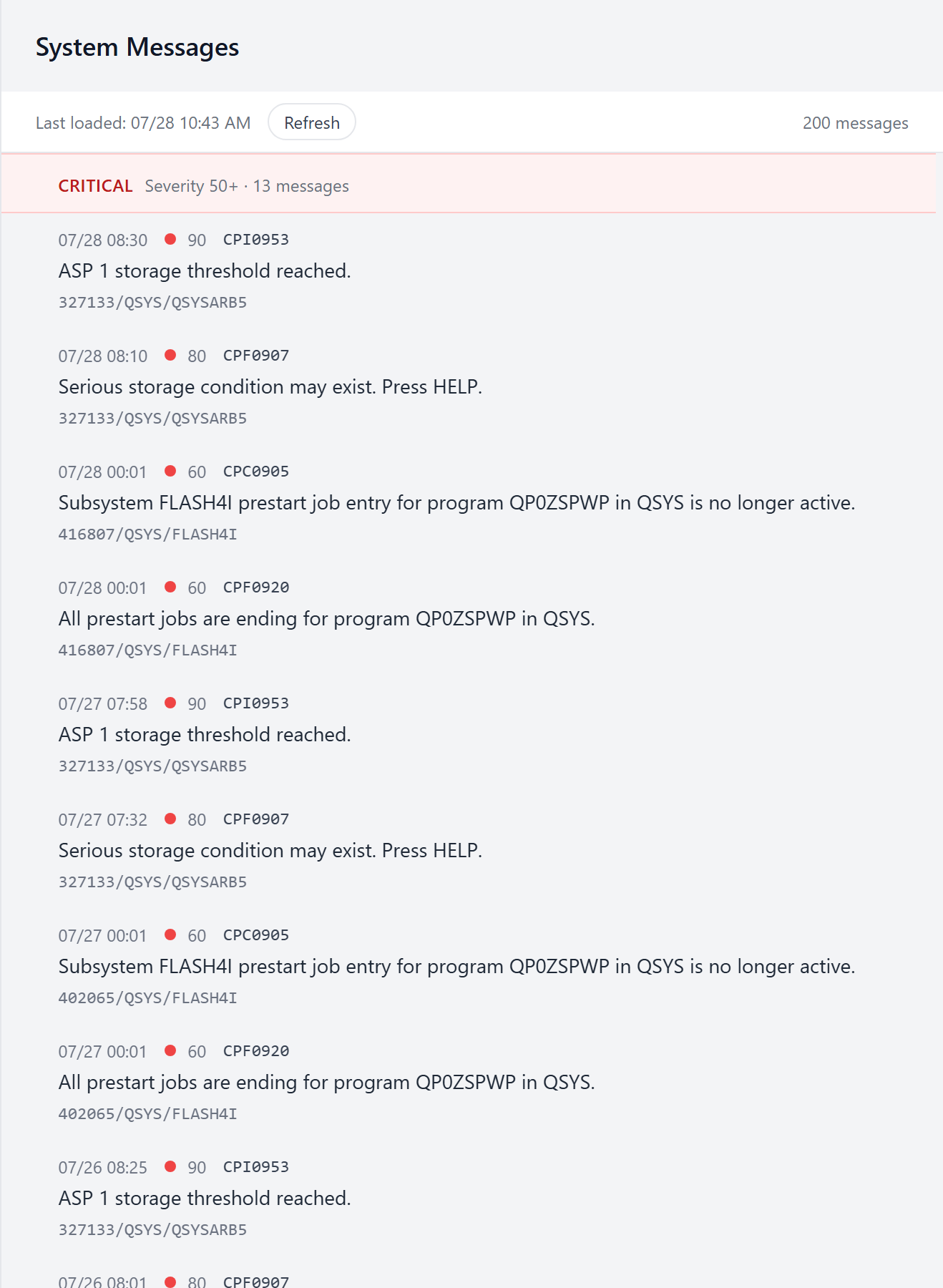
Each row shows the time, a color-coded severity dot and number, the message ID, the message text, and the originating job. The feed holds the 200 most recent messages on the queue. The header shows when the feed was last loaded and how many messages it holds; when there are none to show, the feed reads No system messages.
The feed refreshes on its own about every five minutes; you can also refresh it yourself with the Refresh button. When a refresh brings in messages that were not there on the previous load, those rows are highlighted and an N new pill appears beside Refresh, until the next refresh. Nothing is highlighted on the first load after you open the page.
Message detail
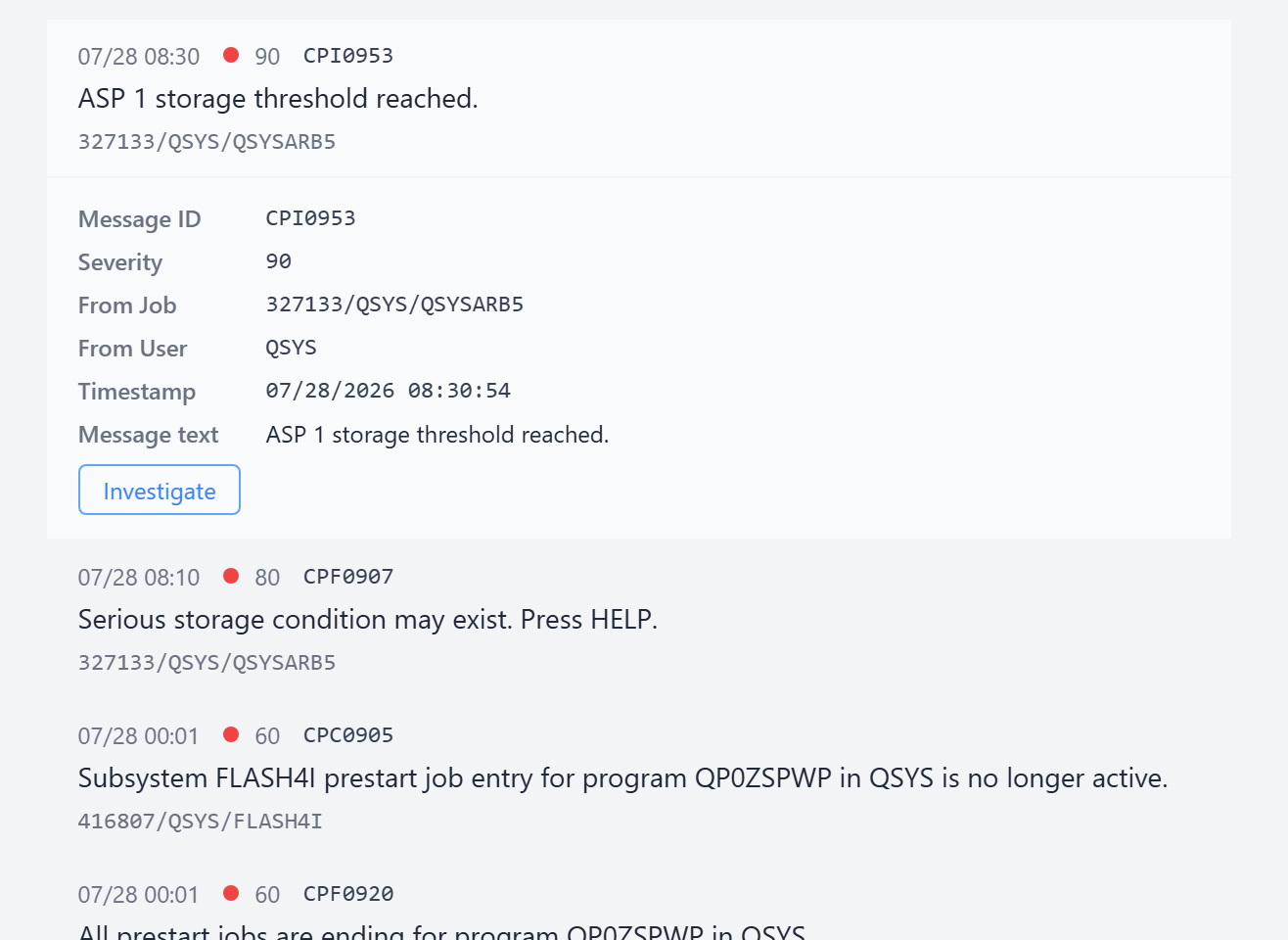
Select any message to expand it and see the full detail — message ID, severity, originating job and user, the timestamp, and the complete message text:
Investigations
From an expanded message, select Investigate. OpsIQ opens a conversation in the Chat Assistant, seeded with that message, and works out what happened: it gathers evidence about the event — related jobs, surrounding messages, the state of the objects involved — and comes back with a plain-language explanation of the likely cause and what to do next.
Because an investigation runs in the Chat Assistant, the evidence it gathers is shown the same way as in any chat — one or more Ran N tools lines, interleaved with OpsIQ's narration as it works, that you can expand to see exactly what it looked at (and, when enabled, the SQL it ran). See How OpsIQ uses your system data for how that evidence is presented.
What makes an investigation distinct is the result: a focused read of this event and concrete, prioritized next steps.
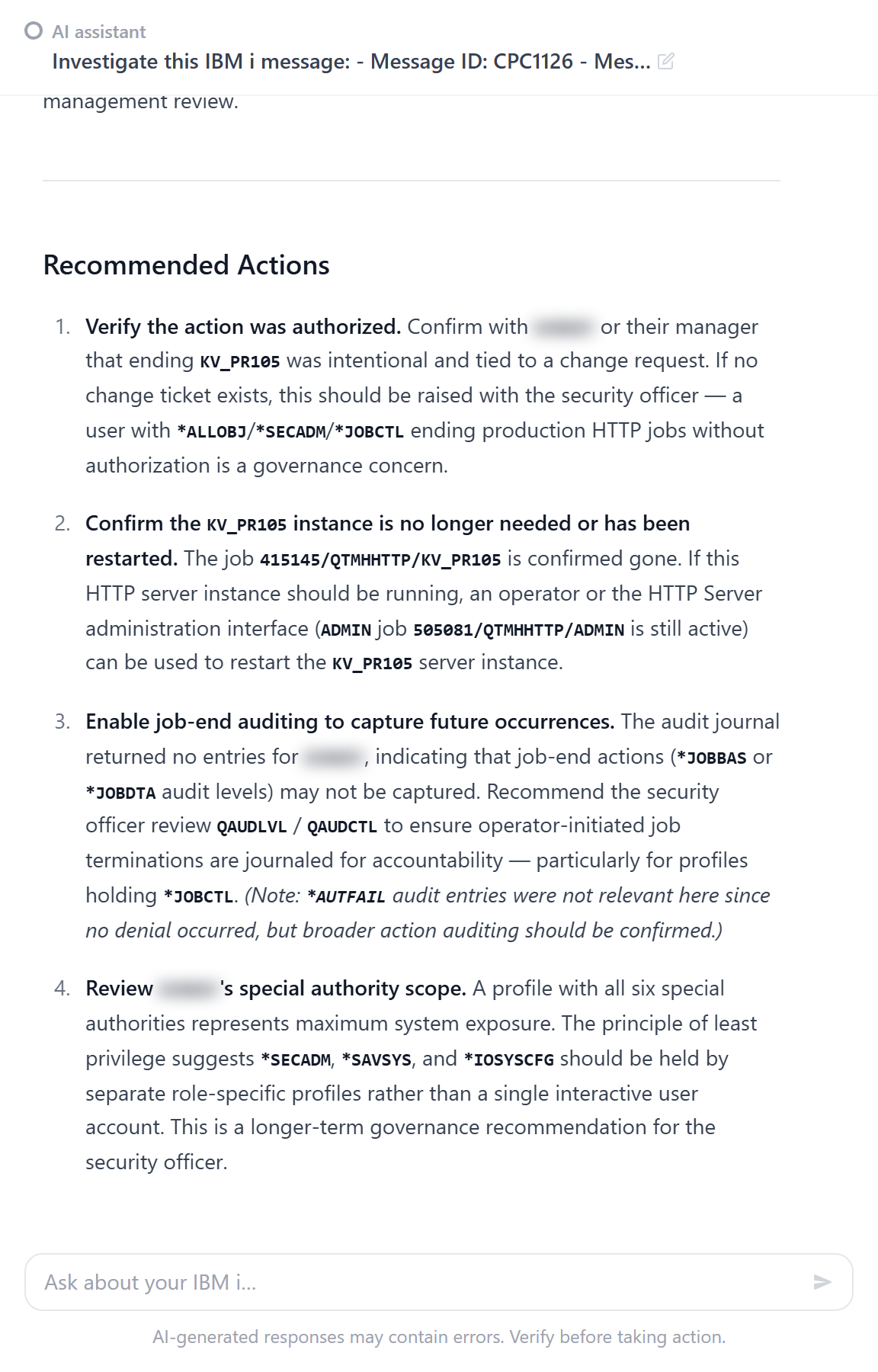
Investigations are a central part of what OpsIQ does: they turn a raw IBM i message into something an operator can act on. Each investigation:
- continues as a normal chat — ask follow-up questions to dig deeper;
- is saved as a Session you can reopen or rename, and can run alongside others (see launching parallel investigations);
- is recorded in the Audit Log, which users with
*SECADMauthority can review.
Verify before acting
An investigation's recommended actions are AI-generated guidance, not commands OpsIQ carries out. Review them and confirm anything important before acting.