Audit Log
The Audit Log records what OpsIQ's AI did — every chat, investigation, and follow-up — so you can review activity after the fact and keep an accountable trail of how OpsIQ was used against your system.
Who can see it
The Audit Log is for authorized users. The Audit Log entry appears in the navigation rail only for profiles with security-administrator authority (*SECADM); other users do not see it, and a user without that authority who opens the page directly sees Access restricted instead. This keeps the record of who asked what in the hands of the people responsible for oversight.
What is recorded does not depend on authority: every user's AI interactions go into the log. Only viewing it requires *SECADM.
What is recorded
Open Audit Log from the navigation rail to see every AI interaction, newest first. The list scrolls infinitely — older entries load as you reach the bottom — and Refresh reloads it from the top. The toolbar shows when the list was Last loaded. Until anything has been recorded, the list reads No audit entries yet.
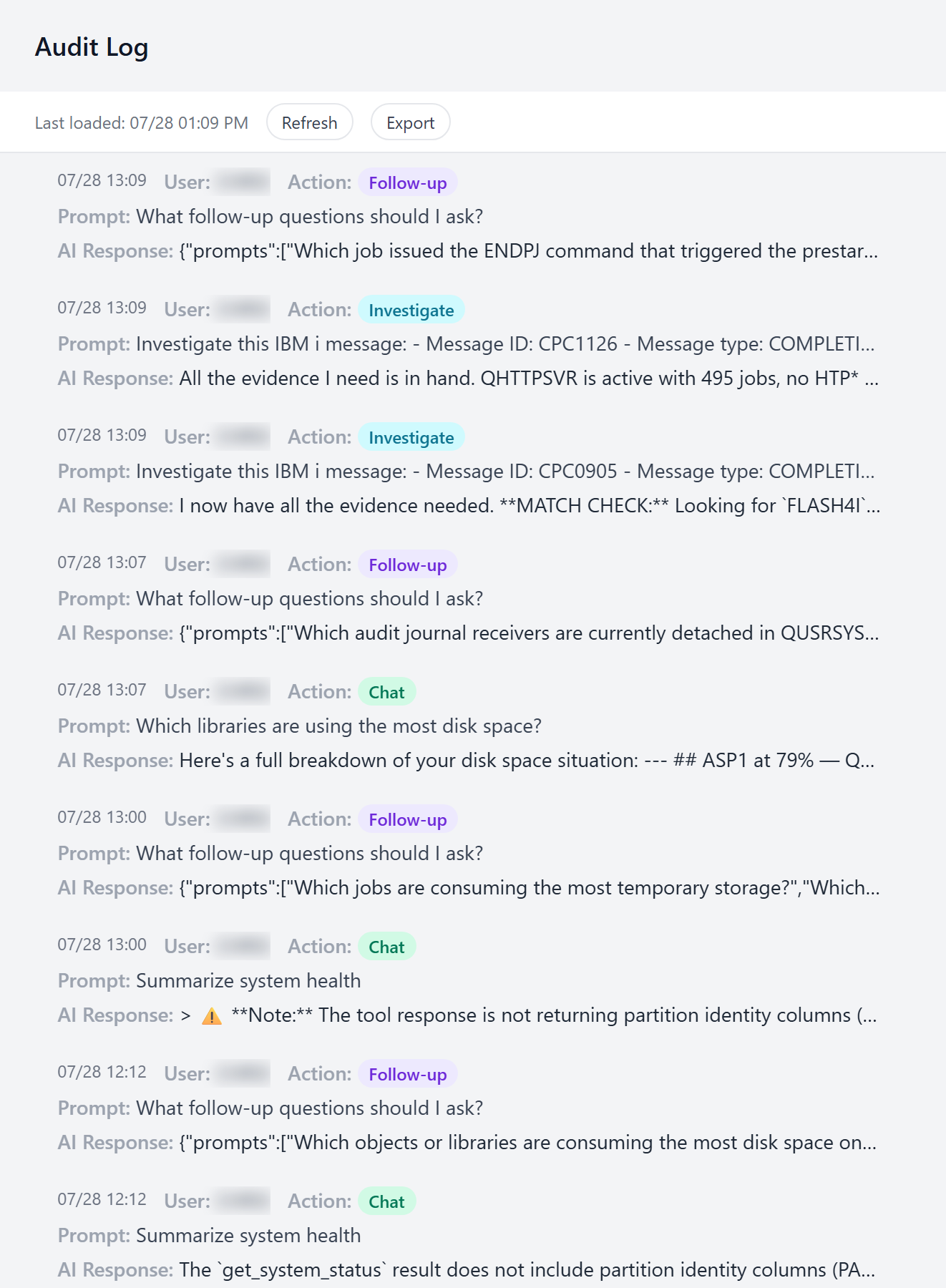
Each row shows the time, the user, an action badge, the prompt, and a preview of the AI response. The action badge tells you which flow the interaction came from:
- Chat — a question asked in the Chat Assistant.
- Investigate — an investigation you started by selecting Investigate on a message, recorded as one row (questions you then ask in the same conversation are recorded as Chat), or the analysis stage of an automatic investigation (off by default).
- Report — the written-summary stage of an automatic investigation (off by default).
- Follow-up — the AI call that generates the suggested follow-up questions shown under an answer. A suggested question you select is sent as an ordinary question, and is recorded as Chat.
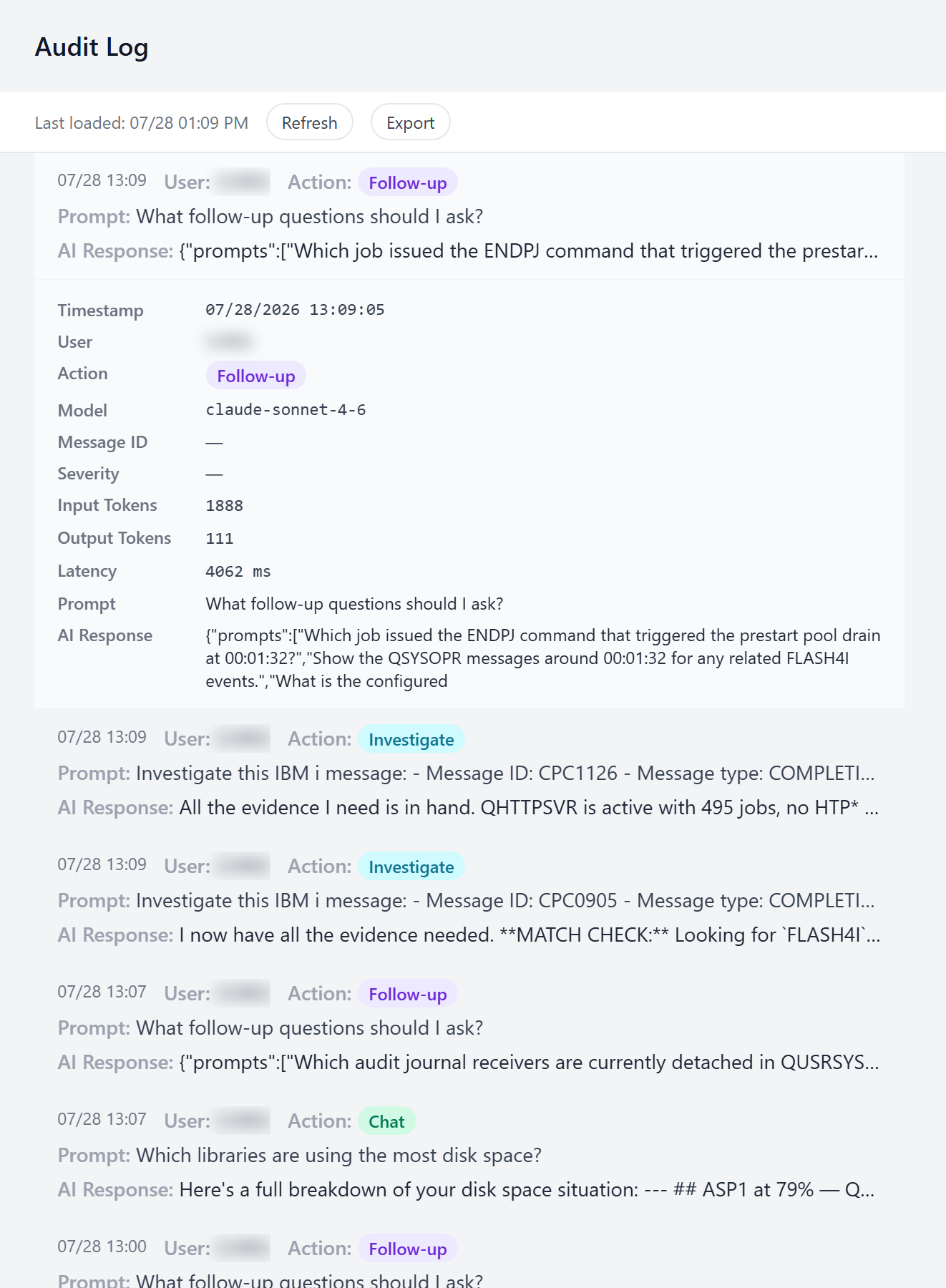
Select a row to expand its full detail — the complete prompt and response, plus the model used, the originating message ID and severity (for investigations), token counts, and how long the response took:
Interactions that ended in an error are recorded too, with the error shown in place of a response — so the log reflects what actually happened, not only what succeeded.

Exporting
Select Export to download the full log as a JSON file. OpsIQ gathers the whole ledger — showing its progress as it goes — and hands your browser a single file you can archive or hand to an auditor, named opsiq-audit-log-<timestamp>.json. No dialog or options to fill in; it is one action.

Large logs
Export captures the newest 10,000 entries — a fixed limit that keeps the download within your browser's memory. If your log holds more than that, OpsIQ tells you so after the export, and the file contains the most recent 10,000 entries.