First Login
Once OpsIQ is installed, open the web UI address the installer printed. It looks like https://your-ibm-i.example.com:3000/login. This walkthrough takes you from signing in to your first investigation.
Sign in
OpsIQ uses your IBM i user profile to sign in — the same profile and password you use on the system. There is no separate OpsIQ account to create.
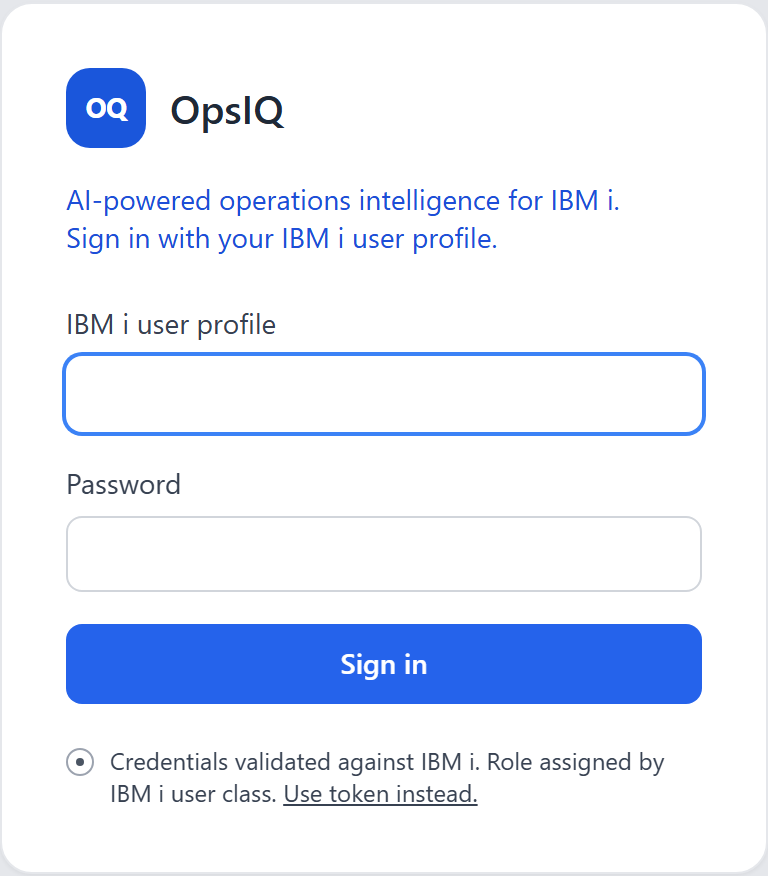
Enter your profile and password and sign in. You will land on the Dashboard, with the Chat Assistant alongside it on the right.
Get your bearings on the Dashboard
The Dashboard shows how the system is doing right now: jobs in MSGW, active jobs, disk usage, abnormal job ends, QSYSOPR alerts and failed sign-ons, each taken live from your IBM i.
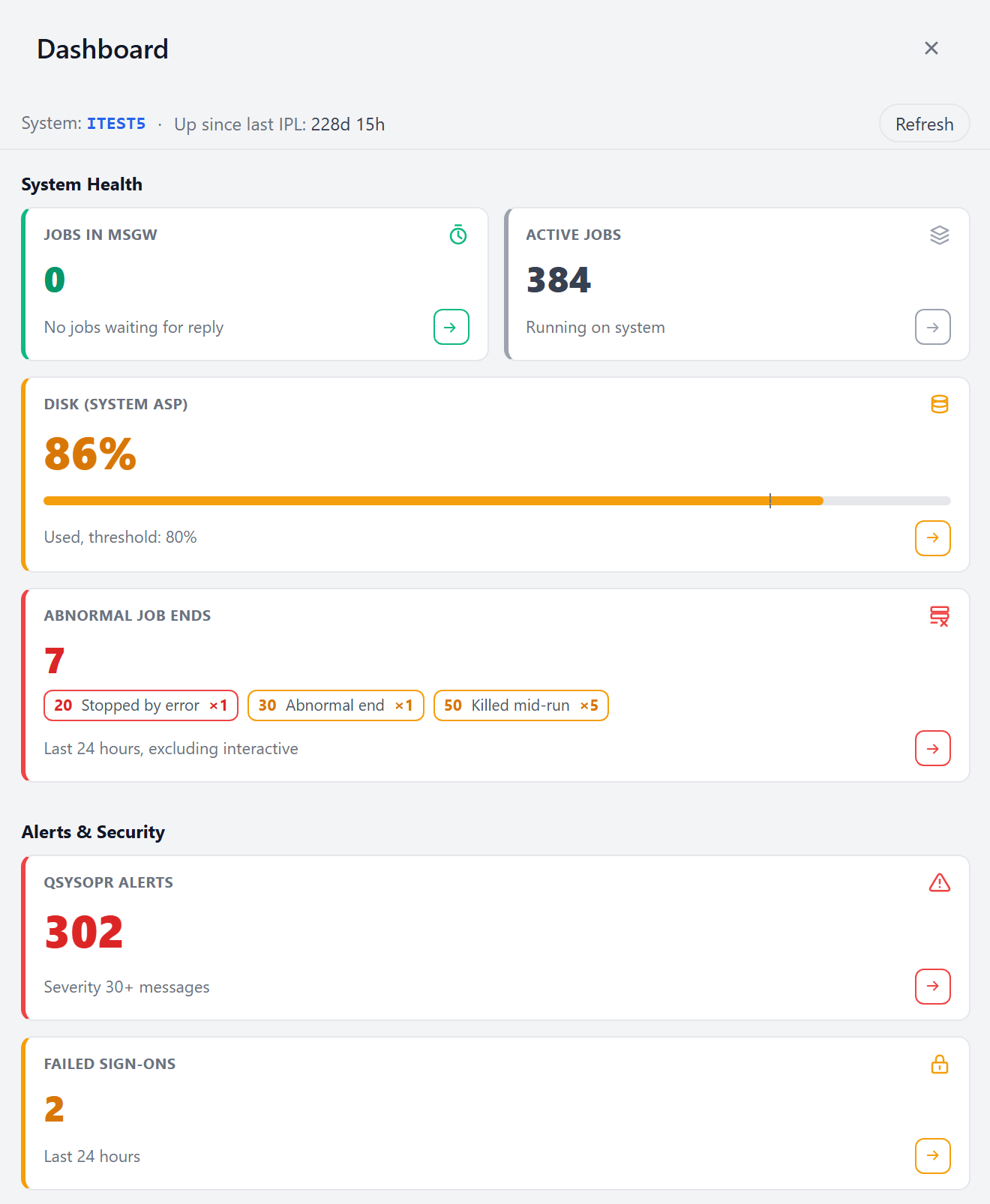
A colored bar down the left edge of each tile indicates the priority or severity of the health indicator being tracked. See Dashboard for an explanation on what indicator each tile tracks and how OpsIQ sets the priority/severity.
Ask the Chat Assistant a question
The Chat Assistant is OpsIQ's headline feature, and it is always within reach. Ask it about your system in plain language — for example, "Which subsystems are active right now?" — and it answers using live data from your IBM i.
If you are not sure what to ask, the assistant offers a few suggested questions to start from; select one, or type your own.
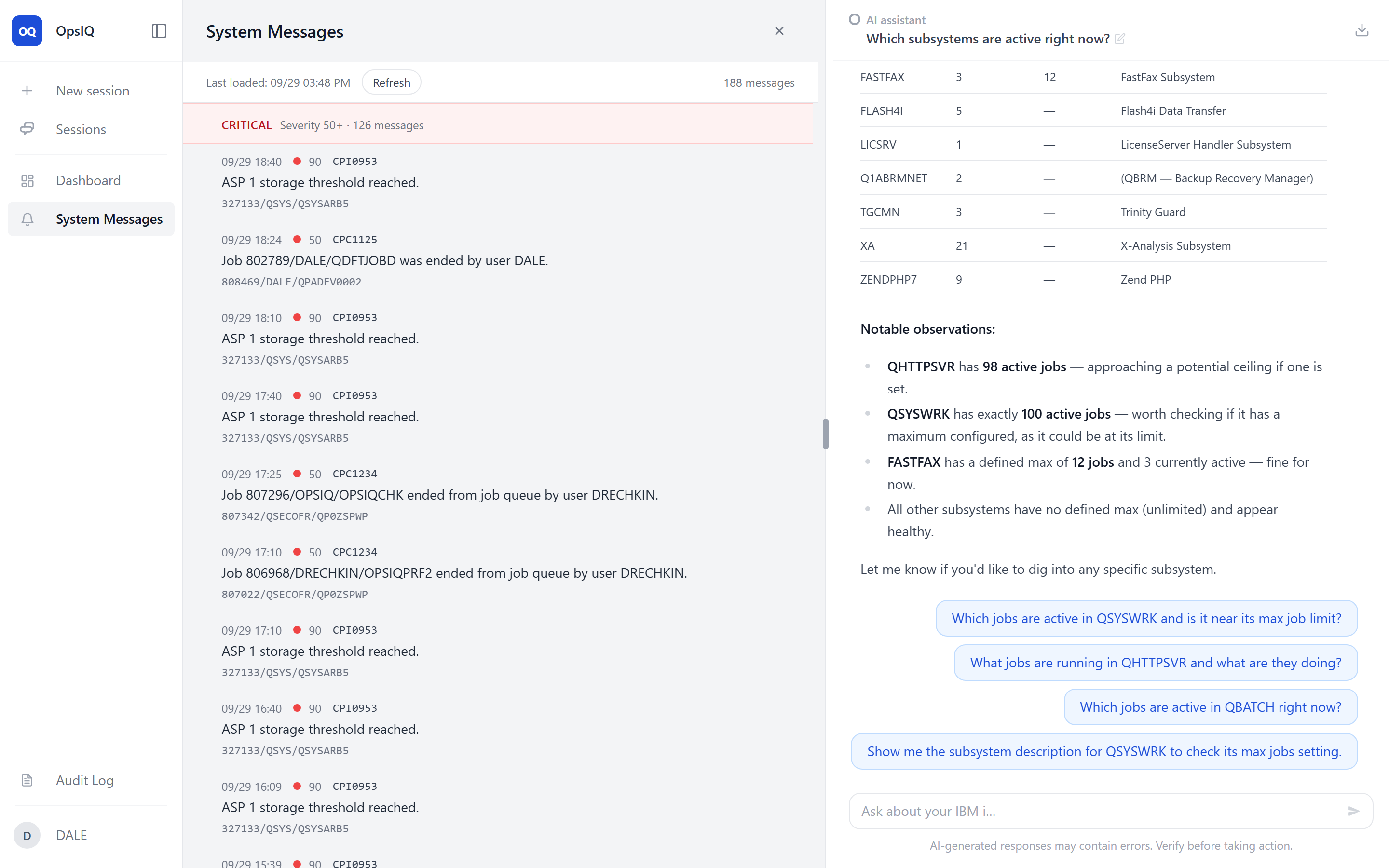
To start a fresh, clean conversation at any time, use New session at the top of the sidebar.
Review System Messages
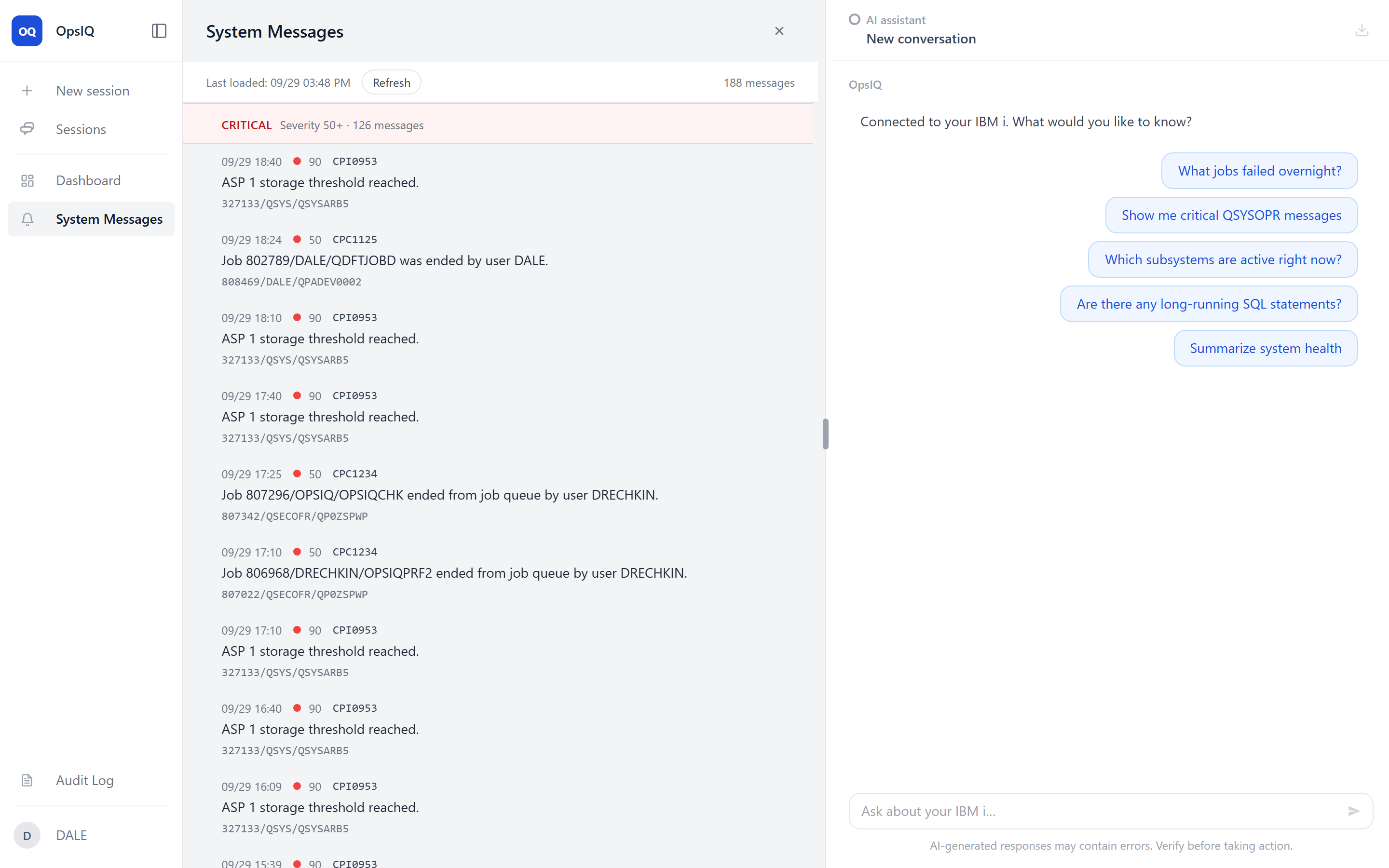
Open System Messages to see the feed of messages OpsIQ has collected from your IBM i, with the ones that matter surfaced to the top.
Investigations — the heart of OpsIQ
From the System Messages feed you can investigate a message. An investigation sends OpsIQ off to gather evidence about what happened — related jobs, recent messages, the state of the objects involved — and returns a plain-language explanation of the likely cause and what to look at next.
This is what turns a wall of IBM i messages into something an operator can act on, and it is a large part of what you will want to try during the pilot. See System Messages for the full feature.
Track your work in Sessions
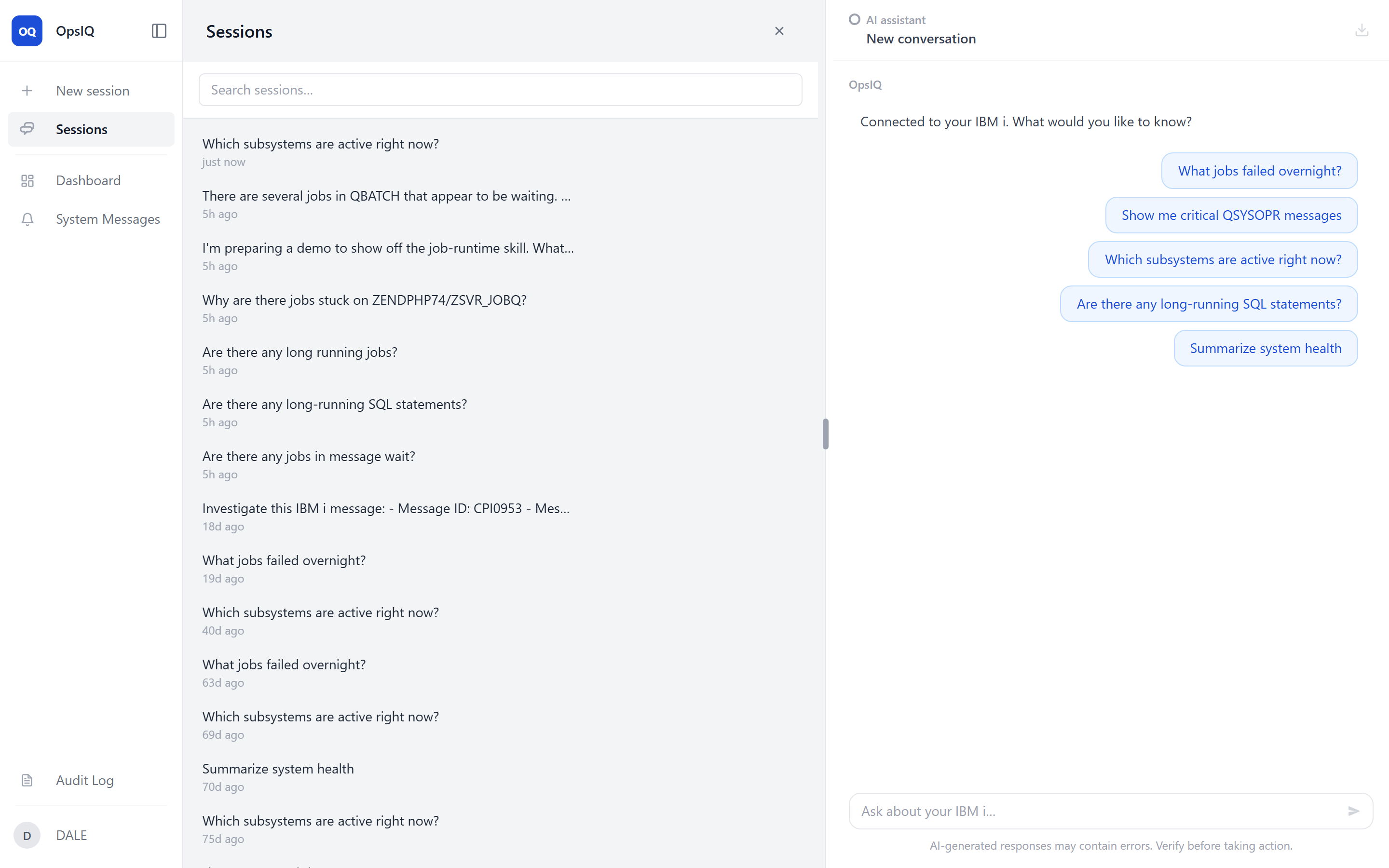
Each conversation — whether a chat you started or an investigation you launched — is kept as a session. You can start several investigations at once and let them run; each appears in the Sessions list, which marks a session when its results are ready. Open Sessions to return to earlier work or to check on investigations still in progress.
Check the Audit Log
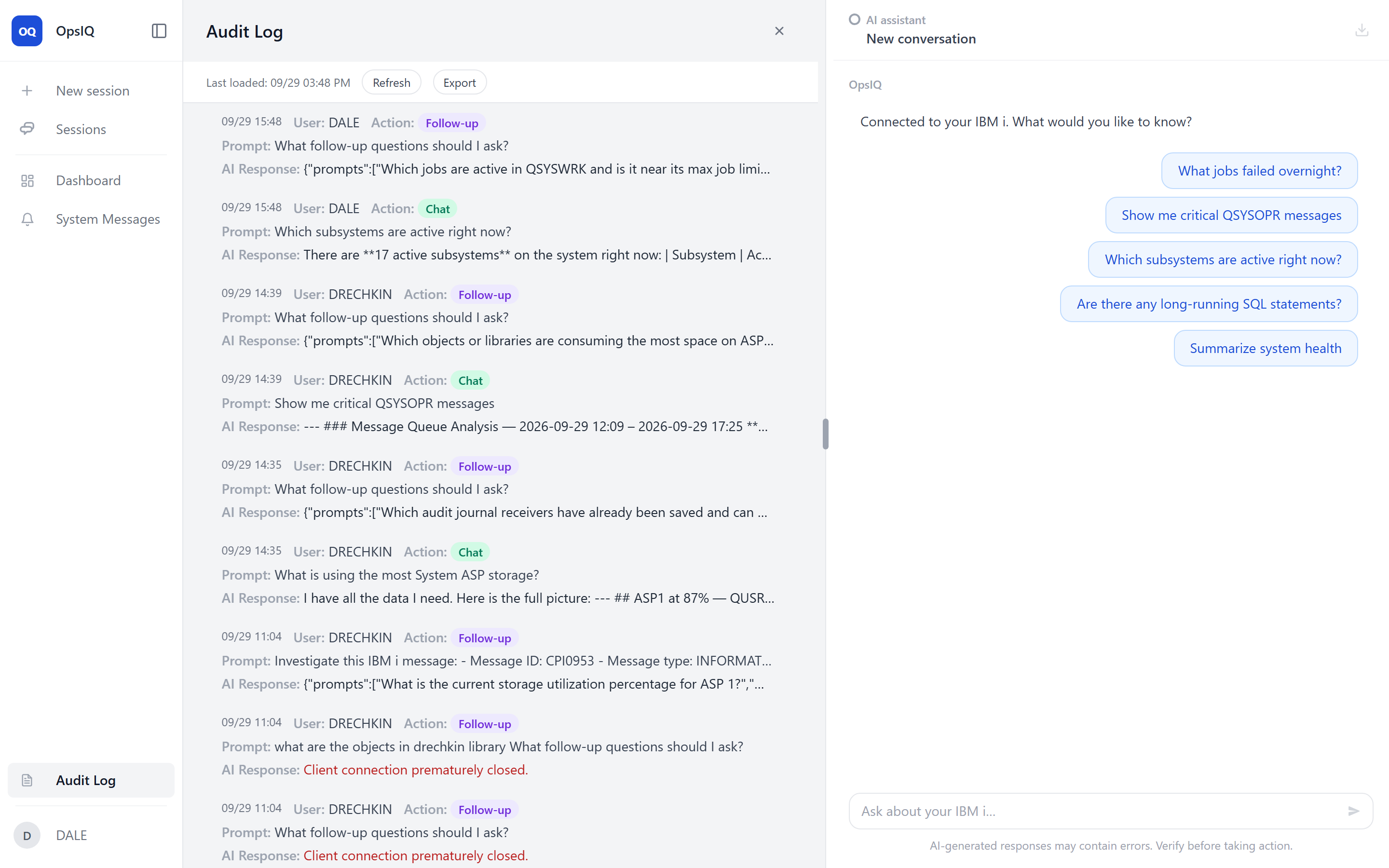
Everything OpsIQ does — chats, investigations, and other flows — is recorded in the Audit Log, for every user, so you can review what ran and when. Viewing the Audit Log requires *SECADM authority; without it, the entry does not appear in the navigation rail.
Next steps
- Explore the features in more depth.
- If anything is not working, see Runtime Issues.