Sessions
Sessions are your saved OpsIQ conversations — both Chat Assistant chats and investigations. Come back to an earlier line of questioning instead of starting over, and keep several going at once.
The sessions list
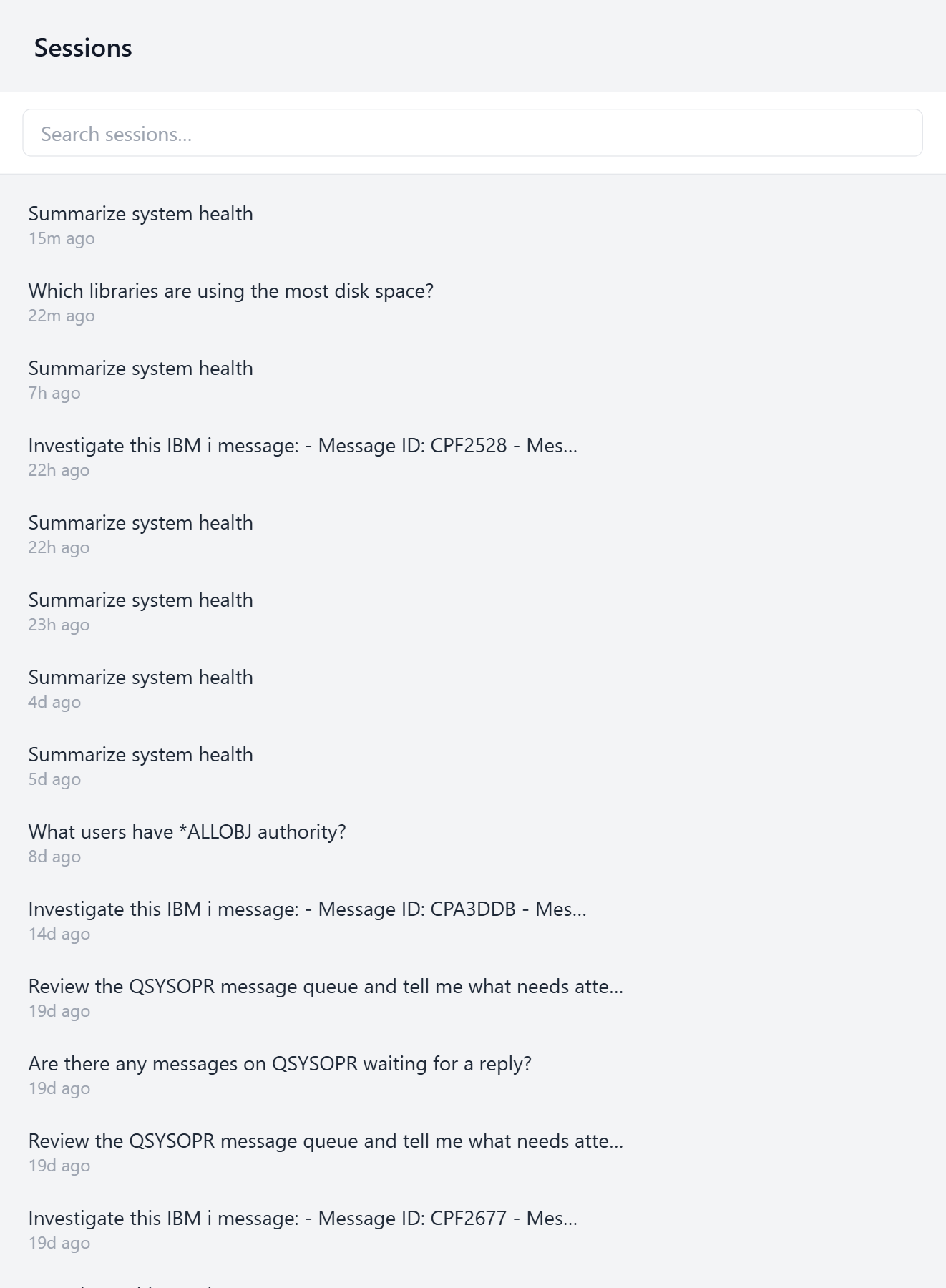
Open Sessions from the navigation rail to see your conversations, newest first. Each session is titled with the start of its first message, so a chat takes its title from your first question, and an investigation's title begins Investigate this IBM i message:. Use the search box to filter by title when the list grows long. When you have no sessions yet, or none match your search, the list reads No past conversations.
Resume, rename, delete
- Resume — select a session to reopen it in the Chat Assistant and pick up where you left off. Everything that was asked and answered is still there, and you can continue the conversation.
- Export / rename / delete: hover over a row to reveal its actions:
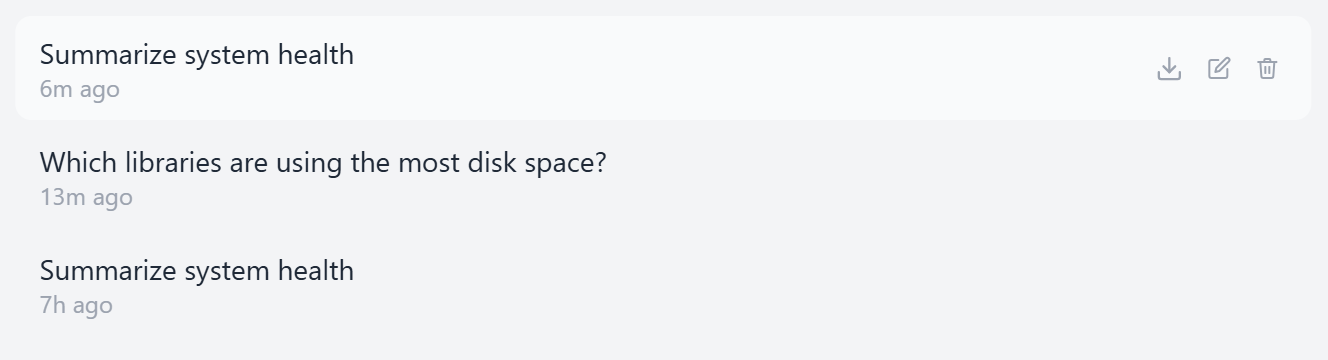
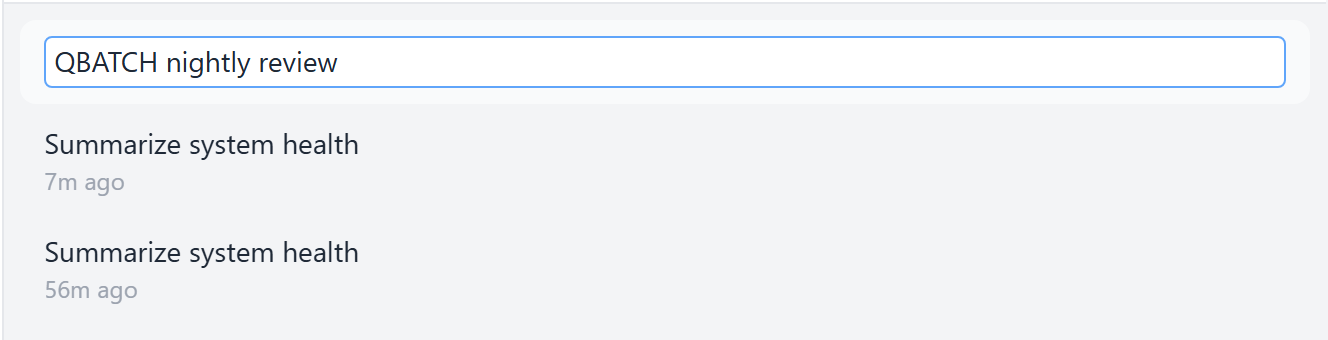
Select the pencil to rename the session inline — type a new title and press Enter (or Esc to cancel):
You can also rename the conversation you have open from the Chat Assistant header: select the pencil beside its title.
Select the trash icon to delete a session; OpsIQ asks you to confirm first.
Select the download icon to export the session's transcript. See Export a transcript below.
Export a transcript
Sometimes the useful question is not what OpsIQ concluded, but how it got there: which tools it ran, what it asked them for, and what SQL reached the database. Exporting a transcript gives you that as a single JSON file you can read, keep, or attach to a support ticket.
There are two ways to export, and both produce the same file:
- the download icon on a row in the sessions list (shown with the row's other controls above) exports that session without opening it;
- the download icon in the Chat Assistant header exports the conversation you are currently reading.
The control is unavailable while a reply is still arriving, because a transcript taken mid-answer would be missing the very turn you are waiting on. Let the response finish, then export.
Your browser saves the file as opsiq-transcript-<session-id>-<timestamp>.json, where <session-id> is the session's ID (the id field in the file).
What is in the file
Every turn in order, and for each tool the assistant called: the tool's name, the arguments it chose, the SQL that ran, the parameter values bound into it, and how long the call took. Because the arguments are recorded, the transcript also shows which investigation skill OpsIQ loaded to answer the question, which helps when a reply went in an unexpected direction.
json
{
  "schemaVersion": 1,
  "exportedAt": "2026-08-18T15:04:11.000Z",
  "session": {
    "id": "0b9a41c8-9f2e-4d51-b6a7-1c30f5e8d244",
    "title": "Which libraries are using the most disk space?",
    "username": "CHRIS",
    "startedAt": "2026-08-18T14:58:02.000Z",
    "updatedAt": "2026-08-18T15:01:47.000Z"
  },
  "messageCount": 2,
  "messages": [
    {
      "role": "user",
      "at": "2026-08-18T14:58:02.000Z",
      "parts": [
        { "kind": "text", "text": "Which libraries are using the most disk space?" }
      ]
    },
    {
      "role": "assistant",
      "at": "2026-08-18T15:01:47.000Z",
      "parts": [
        {
          "kind": "tool",
          "toolCallId": "call_9RtQ2m",
          "toolName": "loadSkill",
          "status": "resolved",
          "args": { "name": "disk-space" }
        },
        {
          "kind": "tool",
          "toolCallId": "call_4kLp7d",
          "toolName": "get_library_size",
          "status": "resolved",
          "args": { "library_name": "QUSRSYS" },
          "meta": {
            "sql": "SELECT OBJLIB AS LIBRARY, INTEGER(SUM(OBJSIZE) / 1048576) AS SIZE_MB, COUNT(*) AS OBJ_COUNT FROM TABLE(QSYS2.OBJECT_STATISTICS(:library_name, '*ALL')) GROUP BY OBJLIB",
            "params": { "LIBRARY_NAME": "QUSRSYS" },
            "durationMs": 89
          }
        },
        { "kind": "text", "text": "QUSRSYS is enormous at 501 GB ..." }
      ]
    }
  ]
}
schemaVersion identifies the layout of the file. It changes only if the shape changes in a way that would break something reading it.
What the file does not contain is the results the tools returned, meaning the rows a query produced. You can see the question that was asked of the database, not the data that came back.
Exports always include the SQL
The EXPOSE_SQL_METADATA option decides whether the Chat Assistant displays SQL on screen. A transcript contains it either way, since the point of an export is to explain what happened. Only the owner of a session can export it.
Running investigations in parallel
Investigations run independently, so you do not have to wait for one to finish before starting another. Launching an investigation does not take you away from System Messages — the feed stays open, so you can select another message and investigate it right away. Both run at the same time, working in the background.
The sessions list shows you their progress at a glance:
- a pulsing green dot marks a session that is still receiving a reply — an investigation still running, or a chat answer still arriving;
- a session that finishes while you are elsewhere turns bold blue until you open it (or bold red if it ran into an error), so a completed result never slips by unnoticed.
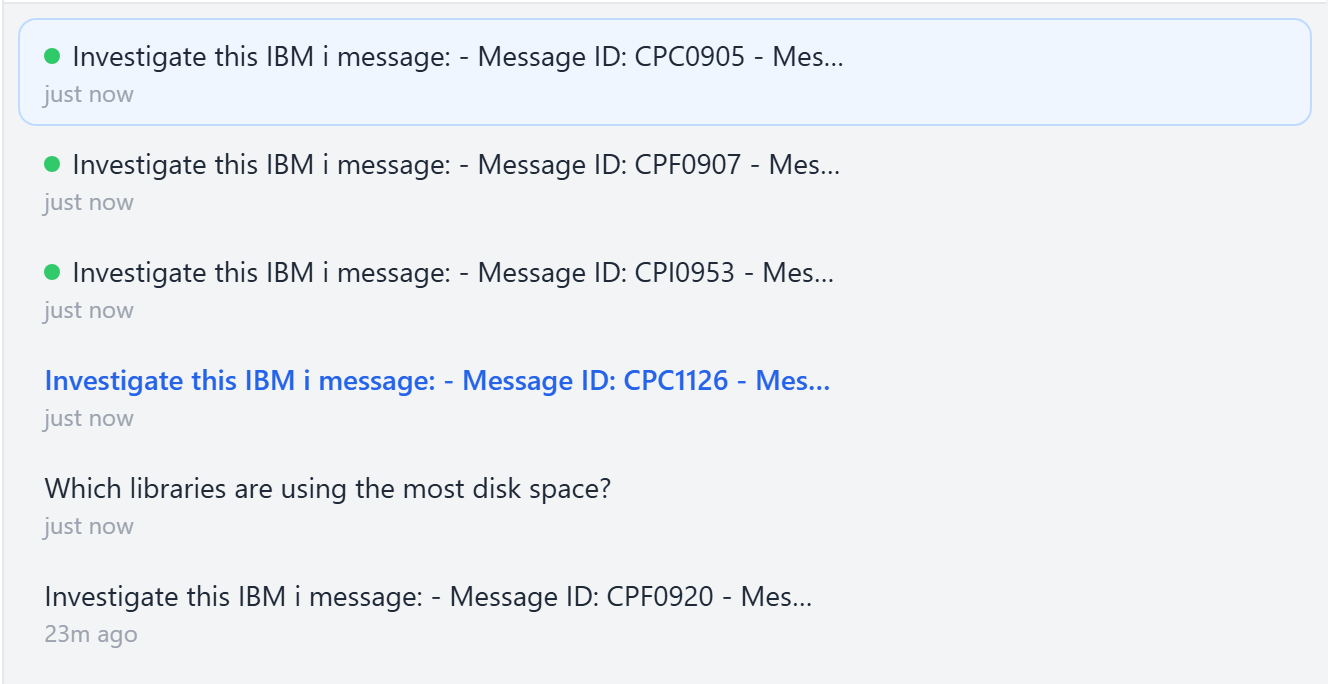
This lets you kick off several investigations at once — say, one per critical message — and read each result as it lands.